
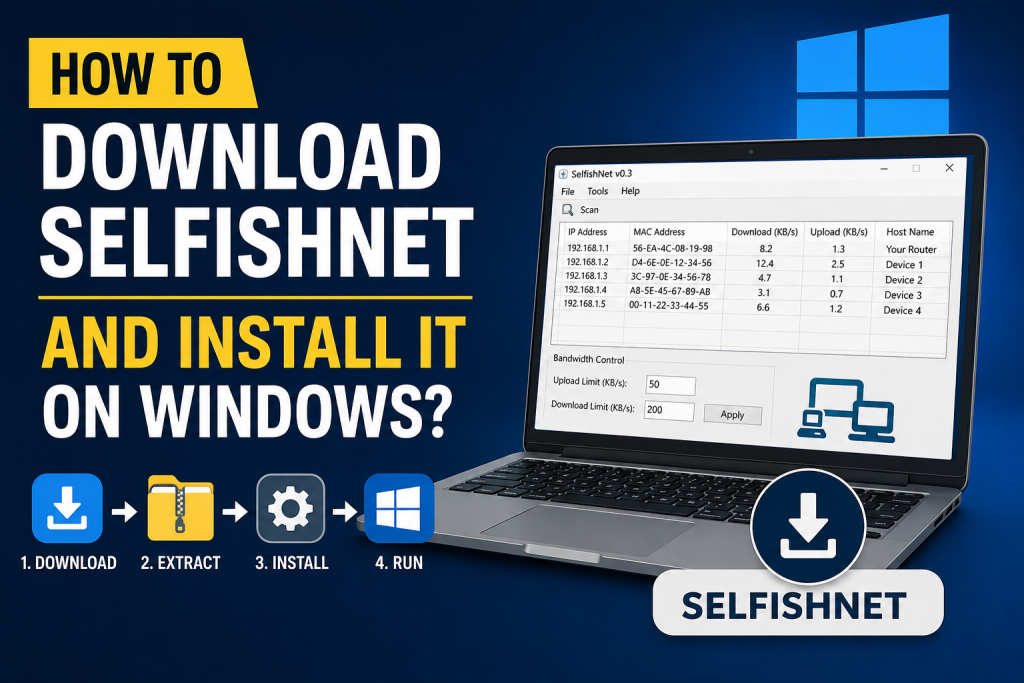
SelfishNet is a popular Windows network management tool that helps users monitor connected devices and control bandwidth on a local network. Many people use it to check which devices are using their Wi-Fi and how much internet speed they are consuming.
If you want to download SelfishNet and install it on Windows, the process is simple, but you must use a trusted source and run it correctly. In this guide, you will learn how to download SelfishNet safely, install the required files, run it as administrator, and fix common issues that may appear during setup.
Read More: Is SelfishNet Safe to Use and Is It Legal?
What Is SelfishNet?
SelfishNet is a network management tool designed for Windows. It can scan devices connected to the same local network and show their bandwidth usage. Depending on the version, it may also allow users to limit or block bandwidth for selected devices.
Because this type of tool works at the local network level, it should only be used on your own network or on a network where you have permission. Using it on public, office, school, or someone else’s Wi-Fi without approval may be illegal or against network rules.
Is SelfishNet Available for Windows?
Yes, SelfishNet is mainly used on Windows computers. Users commonly run it on Windows 7, Windows 8, Windows 10, and Windows 11. However, because SelfishNet is an older-style network utility, it may need extra components or administrator permission to work correctly.
For best results, you should use it on a Windows PC connected to the same Wi-Fi or LAN network that you want to monitor.
How to Download SelfishNet Safely
To download SelfishNet, always choose a trusted source. Avoid unknown websites that force you to install extra download managers, browser extensions, or suspicious setup files.
Follow these safety tips before downloading:
- Download SelfishNet from a trusted project page or reputable software source.
- Avoid cracked, modified, or “full unlocked” versions.
- Scan the downloaded file with Windows Security or another antivirus tool.
- Do not download files from pop-up ads or shortened links.
- Prefer a ZIP or release package that clearly contains the SelfishNet program files.
Since SelfishNet is often shared as a portable tool, you may not always get a traditional installer. In many cases, you simply download a compressed file, extract it, and run the program.
Requirements Before Installing SelfishNet
Before running SelfishNet on Windows, make sure you have:
- A Windows computer
- Administrator access
- A stable Wi-Fi or LAN connection
- A packet capture driver such as WinPcap or Npcap, if required by your version
- Antivirus permission, if Windows blocks the file
Some versions of SelfishNet may not open or scan the network correctly unless the required network driver is installed. If the app does not detect your network adapter, installing Npcap or WinPcap may solve the issue.
How to Install SelfishNet on Windows
Follow these steps to install and run SelfishNet on your Windows PC:
Download the SelfishNet File
First, download the SelfishNet ZIP or release file from a trusted source. Save it in an easy location, such as your Downloads folder or Desktop.
Make sure the file name looks related to SelfishNet and does not include suspicious extra software.
Extract the Downloaded File
Most SelfishNet downloads come in a compressed format like ZIP or RAR. Right-click the downloaded file and choose “Extract All” if it is a ZIP file.
If it is a RAR file, you may need software like WinRAR or 7-Zip to extract it.
After extraction, open the new folder and look for the main application file, usually named:
SelfishNet.org
Install WinPcap or Npcap If Needed
If SelfishNet asks for a network driver or does not scan devices properly, install a packet capture driver such as Npcap or WinPcap.
After installing the driver, restart your computer. This helps Windows load the network driver correctly.
Run SelfishNet as Administrator
Right-click on SelfishNet.org and select “Run as administrator.”
This step is important because SelfishNet needs permission to access local network information. Without administrator access, the tool may open but fail to detect devices.
Select Your Network Adapter
When SelfishNet opens, it may ask you to choose a network adapter. Select the adapter that is currently connected to your internet connection.
For example:
- Choose your Wi-Fi adapter if you are connected through Wi-Fi.
- Choose your Ethernet adapter if you are connected through a LAN cable.
Selecting the wrong adapter can stop SelfishNet from detecting devices on your network.
Scan Your Network
After selecting the correct adapter, start the scan. SelfishNet should show a list of connected devices on your local network.
You may see details such as:
- Device IP address
- MAC address
- Download speed
- Upload speed
- Network activity
This helps you understand which devices are using your internet connection.
Common Problems and Fixes
SelfishNet Is Not Opening
If SelfishNet does not open, try running it as administrator. You should also check whether Windows Security or your antivirus has blocked the file.
If the file came from an unknown source, do not force it to run. Delete it and download from a safer source.
SelfishNet Is Not Detecting Devices
If SelfishNet opens but does not show connected devices, check these points:
- Make sure you selected the correct network adapter.
- Install or reinstall Npcap or WinPcap.
- Restart your PC after installing the driver.
- Make sure your computer is connected to the same network.
- Try using Ethernet if Wi-Fi scanning does not work.
Windows Defender Blocks SelfishNet
Some network tools may be flagged because they interact with local network traffic. This does not always mean the file is harmful, but you should be careful.
Only allow the file if you downloaded it from a trusted source and scanned it first. Never allow a file that came from a suspicious website.
SelfishNet Does Not Work on Windows 11
SelfishNet may work on Windows 11, but compatibility depends on the version you download and the required network drivers. If it fails to work, try installing Npcap, running the tool as administrator, and checking the selected adapter.
If it still does not work, the version may be outdated or incompatible with your system.
Is SelfishNet Safe to Use?
SelfishNet can be safe if downloaded from a trusted source and used responsibly on your own network. However, because it can affect other devices on a network, it should be used carefully.
Do not use SelfishNet to interrupt other people’s internet access without permission. For normal home use, it is better to use your router’s built-in parental controls, QoS settings, or device management features when available.
Best Practices After Installing SelfishNet
After installing SelfishNet, keep these best practices in mind:
- Use it only on your own Wi-Fi or LAN network.
- Do not block unknown devices without checking who owns them.
- Do not use it on public networks.
- Keep your antivirus enabled.
- Delete suspicious versions immediately.
- Use router settings for long-term bandwidth control.
Conclusion
Downloading and installing SelfishNet on Windows is usually simple. In most cases, you only need to download the file, extract it, install the required network driver if needed, and run SelfishNet as administrator.
If SelfishNet does not work properly, the most common causes are missing packet capture drivers, wrong network adapter selection, or Windows permission issues.
SelfishNet can be useful for local network monitoring, but it should always be used legally and responsibly. For safer and more stable control, you can also check your router’s built-in bandwidth management options.