
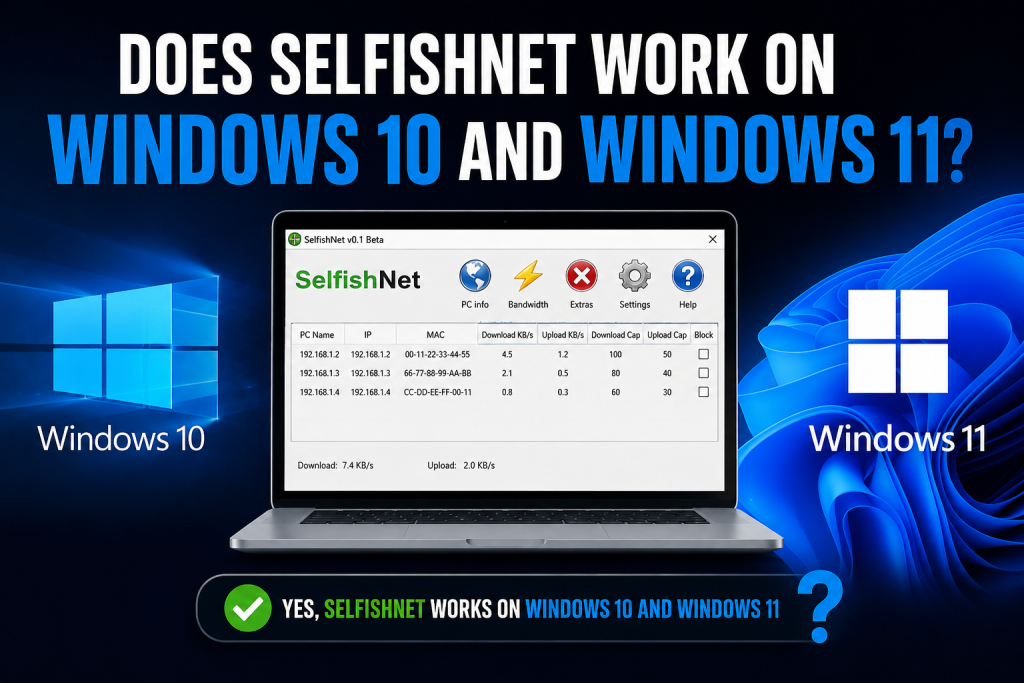
SelfishNet is a popular network monitoring and bandwidth control tool used by many people to manage devices connected to the same Wi-Fi or LAN network. One of the most common questions users ask before downloading it is: Does SelfishNet work on Windows 10 and Windows 11?
The simple answer is yes, SelfishNet can work on Windows 10 and Windows 11, but its performance depends on the version you use, your network adapter, administrator permissions, and required packet capture drivers such as WinPcap or compatible alternatives.
Read More: How Do I Download SelfishNet and Install It on Windows?
SelfishNet Compatibility with Windows 10
SelfishNet is generally known to work well on Windows 10. Many users prefer running it on Windows 10 because the system still supports many older networking tools and drivers.
To use SelfishNet on Windows 10 properly, you usually need to:
- Run the program as administrator
- Install the required packet capture driver
- Select the correct active network adapter
- Use it on a network you own or have permission to manage
- Make sure your antivirus or firewall is not blocking the tool
If SelfishNet does not detect devices on Windows 10, the issue is usually not the operating system itself. In most cases, the problem is caused by missing drivers, wrong adapter selection, firewall restrictions, or lack of administrator access.
Does SelfishNet Work on Windows 11?
Yes, SelfishNet can also work on Windows 11, but users may face more compatibility issues compared to Windows 10. Windows 11 has stronger security settings, updated driver handling, and stricter network permissions. Because of this, some older versions of SelfishNet may not run smoothly without extra setup.
For better results on Windows 11, you should try these steps:
- Run SelfishNet as administrator
- Use the latest available version of SelfishNet
- Install the required packet capture driver
- Allow the app through Windows Security if it is blocked
- Make sure your network adapter supports the required network monitoring features
- Restart your PC after installing any network driver
If the tool opens but does not show connected devices, the issue may be related to your network adapter or driver compatibility rather than SelfishNet itself.
Why SelfishNet May Not Work Properly
Even if you are using Windows 10 or Windows 11, SelfishNet may not work correctly in every situation. This is because the software depends on low-level network access.
Here are the most common reasons SelfishNet may fail:
Missing Packet Capture Driver
SelfishNet needs a packet capture driver to monitor network traffic. Without this driver, the software may open but fail to detect devices or control bandwidth.
Not Running as Administrator
SelfishNet needs elevated permissions to access network features. If you run it normally, some functions may not work.
Wrong Network Adapter Selected
Many computers have multiple adapters, such as Wi-Fi, Ethernet, VPN, Bluetooth, or virtual adapters. If you select the wrong one, SelfishNet may show no devices.
Antivirus or Firewall Blocking It
Because SelfishNet interacts with network traffic, some security tools may block it or mark it as suspicious. Always download it from a trusted source and use it carefully.
Unsupported Wi-Fi Adapter
Some Wi-Fi adapters do not support the features needed for proper network scanning or control. In that case, SelfishNet may not work even if everything else is installed correctly.
Is SelfishNet Safe to Use on Windows 10 and 11?
SelfishNet can be safe if you download it from a trusted source and use it only on your own network. However, because it is a network control tool, you should avoid using unknown modified versions from random websites.
You should also remember that SelfishNet should only be used for legal and responsible purposes, such as managing your own home network, testing your own connection, or monitoring devices on a network you are allowed to manage.
Using it on public, school, office, or someone else’s network without permission can create privacy and legal problems.
Best Settings for Running SelfishNet on Windows
For a smoother experience, follow these simple tips:
- Use Windows 10 if you want better compatibility with older versions
- Use the latest version if you are on Windows 11
- Always run the app as administrator
- Disable VPN temporarily while scanning your local network
- Choose your active Wi-Fi or Ethernet adapter
- Restart your router and PC if devices are not showing
- Keep your network drivers updated
These steps can fix most common SelfishNet problems on modern Windows systems.
SelfishNet on Windows 10 vs Windows 11
Windows 10 is usually easier for running older SelfishNet versions because it is more compatible with legacy tools and drivers. Windows 11 can still run SelfishNet, but it may require more setup due to stricter security and updated driver requirements.
If you want the most stable experience, Windows 10 is often the better choice. If you are using Windows 11, make sure you use an updated SelfishNet version and install the required driver correctly.
Conclusion
So, does SelfishNet work on Windows 10 and Windows 11? Yes, it can work on both operating systems. Windows 10 usually offers smoother compatibility, while Windows 11 may need additional setup.
If SelfishNet is not working on your PC, check administrator permissions, packet capture drivers, network adapter selection, firewall settings, and Wi-Fi adapter compatibility. Once everything is configured properly, SelfishNet can help you monitor connected devices and manage bandwidth on your local network.