
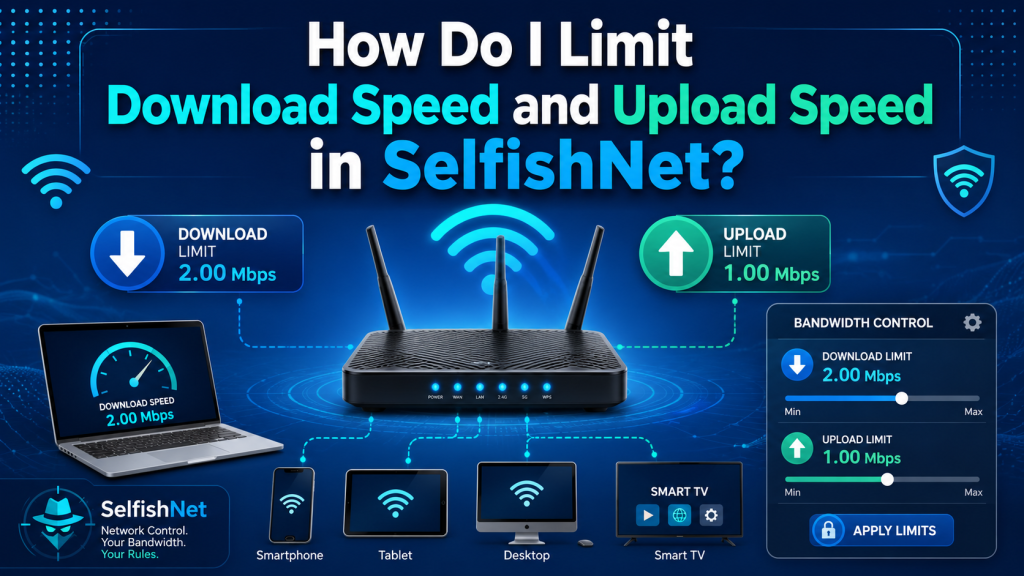
If your internet becomes slow because one device is using too much bandwidth, SelfishNet can help you manage it easily. With SelfishNet, you can control download speed and upload speed for connected devices on your local network. This is useful for stopping heavy downloads, uploads, streaming, or background apps from affecting everyone else.
In this guide, you will learn how to limit download and upload speed in SelfishNet step by step. The process is simple, but you need to select the correct network adapter, scan devices, set speed limits, and apply the changes properly.
Read More: Why Does SelfishNet Need WinPcap or Npcap?
What Does SelfishNet Do?
SelfishNet helps you control bandwidth on your network. With this tool, you can view all connected devices, check their IP and MAC addresses, limit their internet speed, or block their connection completely.
The main purpose of SelfishNet is to give you better control over your Wi-Fi or LAN network. For example, if someone is downloading large files and your internet becomes slow, you can reduce that device’s download speed instead of disconnecting it completely.
Important Note Before Using SelfishNet
Before using SelfishNet, make sure you are using it only on your own network or a network where you have permission. Controlling other people’s internet without permission can cause privacy and legal issues.
Also, SelfishNet may not work properly on every Windows version or every network adapter. In many cases, it requires packet capture drivers such as WinPcap or similar tools to detect and control network traffic.
How to Limit Download Speed in SelfishNet
To limit download speed in SelfishNet, follow these steps:
First, open SelfishNet as administrator. This is important because the tool needs network-level access to scan and control devices. Right-click on the SelfishNet file and choose Run as administrator.
After opening the tool, select your network adapter. This is usually your Wi-Fi or Ethernet adapter. Choose the adapter that is currently connected to the internet.
Now click the scan or discovery button to find all connected devices on your network. SelfishNet will show a list of devices with their IP addresses, MAC addresses, and current internet usage.
Find the device you want to control. If you are not sure which device is which, you can compare the IP or MAC address with the connected devices list in your router settings.
Once you find the device, go to the Download Cap field. Enter the maximum download speed you want to allow for that device. For example, if you want to limit the device to 200 KB/s, type 200 in the download limit box.
After setting the download speed, click the start or apply button, usually shown as a lightning or flash icon. SelfishNet will then apply the speed limit to that device.
How to Limit Upload Speed in SelfishNet
Limiting upload speed is very similar to limiting download speed.
Open SelfishNet as administrator and scan your network. Once the connected devices appear, choose the device you want to control.
Now look for the Upload Cap field. Enter the upload speed limit you want to apply. For example, you can set the upload speed to 50 KB/s, 100 KB/s, or any value depending on your internet connection.
After entering the upload cap, click the apply or start button. SelfishNet will begin limiting the upload speed for that selected device.
Upload speed control is useful when someone is uploading large files, using cloud backup, sending videos, or running apps that consume too much upload bandwidth. High upload usage can make the whole network feel slow, especially during online gaming, video calls, or browsing.
Recommended Speed Limits
The best speed limit depends on your total internet speed and how many people are using the network.
For light browsing, you can allow around 100 KB/s to 300 KB/s download speed. For YouTube or social media, 500 KB/s to 1 MB/s is usually better. For gaming, you should not limit too much because games need stable latency more than high speed.
For upload speed, 50 KB/s to 200 KB/s is enough for normal browsing and messaging. However, if the user needs video calls or file sharing, give them a higher upload limit.
Do not set the speed too low, because the device may stop loading websites properly.
Why SelfishNet Speed Limit May Not Work
Sometimes SelfishNet does not limit download or upload speed correctly. This can happen for several reasons.
The first reason is that SelfishNet may not be running as administrator. Without administrator permission, it may detect devices but fail to control their speed.
The second reason is a wrong network adapter selection. If you choose the wrong adapter, SelfishNet will not control the active network.
Another common reason is missing or outdated packet capture drivers. SelfishNet often depends on drivers like WinPcap or similar tools to work properly.
It may also fail if your antivirus or Windows security blocks the tool. Some security programs may detect SelfishNet as suspicious because it controls network traffic.
Finally, some modern routers, network cards, or Windows updates may reduce compatibility with older versions of SelfishNet.
How to Fix SelfishNet Not Limiting Speed
If SelfishNet is not limiting speed, try running it as administrator first. Then restart the program and select the correct network adapter.
You should also install or reinstall the required packet capture driver. After installation, restart your computer and try again.
If the tool still does not work, temporarily check whether your firewall or antivirus is blocking it. Do not disable security permanently; only test carefully and turn protection back on after checking.
You can also try another version of SelfishNet if your current version is not compatible with your Windows system.
Can I Block a Device Instead of Limiting Speed?
Yes, SelfishNet also allows you to block a device from accessing the internet. This option is usually available in the block checkbox or similar control inside the device list.
However, speed limiting is usually better than blocking. If you only want to reduce bandwidth usage, set a download and upload cap instead of fully disconnecting the user.
Is SelfishNet Safe to Use?
SelfishNet can be useful, but you should download it only from trusted sources. Because it works with network traffic, some versions found online may be modified or unsafe.
Always scan downloaded files before running them. Also, avoid using SelfishNet on public networks, office networks, or any network where you do not have permission.
Conclusion
Limiting download speed and upload speed in SelfishNet is simple. Open the tool as administrator, select the correct network adapter, scan connected devices, enter the download or upload cap, and apply the changes.
SelfishNet is helpful when you want to control bandwidth and keep your internet stable for all users. If one device is using too much speed, you can limit it instead of blocking it completely.
For best results, use reasonable speed limits, keep your drivers updated, and make sure you are using SelfishNet only on a network you own or manage.