
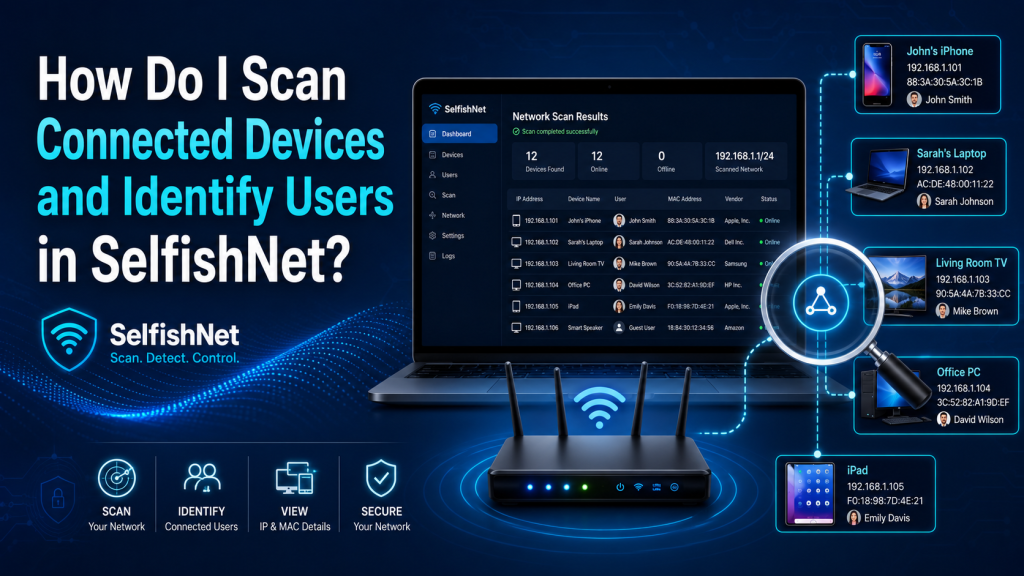
If you are using SelfishNet to manage your local network, one of the first things you need to know is how to scan connected devices and identify which user is using which device. SelfishNet can show devices connected to your network, including their IP address, MAC address, and sometimes the device name. This helps you understand who is using your Wi-Fi and how much bandwidth each device may be consuming.
In this guide, you will learn how to scan connected devices in SelfishNet, how to identify users, and what to do if some devices are not showing correctly.
Read More: Why Is SelfishNet Not Detecting Devices and How Can I Fix It?
What Is SelfishNet Used For?
SelfishNet is a network bandwidth control tool commonly used on Windows computers. It allows users to monitor devices connected to the same local network and control internet speed for selected devices.
With SelfishNet, you can usually:
- Scan devices connected to your Wi-Fi or LAN
- View IP addresses and MAC addresses
- Monitor download and upload activity
- Limit bandwidth for specific devices
- Block internet access for selected devices
However, it should only be used on your own network or a network where you have permission. Using it on public, office, school, or someone else’s network without approval can be illegal or against network rules.
How to Scan Connected Devices in SelfishNet
To scan connected devices in SelfishNet, follow these simple steps:
Run SelfishNet as Administrator
Before opening SelfishNet, right-click on the program and select Run as administrator.
This is important because SelfishNet needs admin permission to access network information properly. Without administrator access, it may not detect devices correctly.
Select the Correct Network Adapter
After opening SelfishNet, it may ask you to choose a network adapter. Select the adapter that is currently connected to your internet.
For example:
- If you are using Wi-Fi, select your wireless adapter.
- If you are using a LAN cable, select your Ethernet adapter.
Choosing the wrong adapter is one of the most common reasons SelfishNet does not show connected devices.
Click the Network Discovery or Scan Button
Once the correct adapter is selected, click the Network Discovery, Scan, or similar button, depending on your version of SelfishNet.
SelfishNet will start searching for devices connected to the same network. After scanning, you should see a list of devices with details such as:
- IP address
- MAC address
- Device name
- Upload speed
- Download speed
Wait for the Device List to Load
Sometimes SelfishNet takes a few seconds to detect all connected devices. Do not close the program immediately if the list looks empty. Wait for the scan to complete.
If devices still do not appear, refresh the scan or restart SelfishNet as administrator.
How to Identify Users in SelfishNet
SelfishNet may show connected devices, but it does not always show the exact user name. To identify users, you need to match the device information with the actual devices in your home or office.
Here are the best ways to do that.
Check the Device Name
Some devices show their name in SelfishNet. For example, you may see names like:
- Ahmed-PC
- Samsung-Galaxy
- iPhone
- DESKTOP-12345
- Redmi-Note
This can help you quickly recognize who owns the device.
Match the IP Address
Every device connected to your network has a local IP address, such as:
- 192.168.1.2
- 192.168.1.5
- 192.168.0.10
You can check the IP address on a phone, laptop, or PC and compare it with the IP address shown in SelfishNet.
On Windows, you can check your IP address by opening Command Prompt and typing:
ipconfig
On Android or iPhone, you can usually find it in the Wi-Fi network details.
Match the MAC Address
A MAC address is a unique hardware address for a device’s network adapter. It usually looks like this:
A4:B1:C1:22:5F:90
SelfishNet often shows the MAC address of each connected device. You can compare this with the MAC address shown in the device’s Wi-Fi settings.
This is one of the most accurate ways to identify a device.
Use Your Router’s Admin Panel
Your Wi-Fi router can also show connected devices. Open your router’s admin page and check the connected clients list. You can compare the router list with SelfishNet’s scan results.
Most routers show:
- Device name
- IP address
- MAC address
- Connection type
This makes it easier to identify unknown devices.
Rename Devices for Easier Identification
Some routers allow you to rename connected devices. For example, you can rename a device as:
- Ali Phone
- Office Laptop
- Smart TV
- Brother PC
Once you rename devices in your router, it becomes easier to manage them in the future.
Why SelfishNet May Not Show Device Names
Sometimes SelfishNet shows only IP and MAC addresses, but not the device names. This is normal. Device names may not appear because:
- The device blocks name sharing
- The router does not provide hostname information
- Windows firewall is blocking network discovery
- The device is using privacy settings
- SelfishNet is not running with admin rights
Even if the device name is missing, you can still identify the user by checking the IP address and MAC address.
What to Do If SelfishNet Does Not Detect Devices
If SelfishNet is not scanning connected devices properly, try these fixes:
Run as Administrator
Always run SelfishNet with administrator permission. This is required for proper network scanning.
Disable Antivirus Temporarily
Some antivirus programs may block SelfishNet because it interacts with network traffic. Temporarily disable your antivirus or add SelfishNet to the allowed list.
Only do this if you downloaded SelfishNet from a trusted source.
Choose the Correct Network Adapter
If you selected the wrong adapter, SelfishNet will not detect devices. Restart the tool and select the active Wi-Fi or Ethernet adapter.
Restart Your Router
Sometimes the router does not update the connected device list properly. Restarting the router can refresh the network and help SelfishNet detect devices.
Make Sure Devices Are on the Same Network
SelfishNet can only detect devices connected to the same local network. If a device is connected to another Wi-Fi network, guest network, VPN, or mobile data, it may not appear.
Check Firewall Settings
Windows Firewall may block network discovery. Allow SelfishNet through the firewall or temporarily disable the firewall for testing.
How to Find Unknown Devices on Your Network
If you see an unknown device in SelfishNet, do not block it immediately. First, try to identify it.
Unknown devices can be:
- A family member’s phone
- Smart TV
- Wi-Fi printer
- Security camera
- Gaming console
- Smart speaker
- Router extender
Check the MAC address and compare it with your router’s connected device list. If you still cannot identify it, change your Wi-Fi password and reconnect only trusted devices.
Can SelfishNet Show the Exact Person Using a Device?
No, SelfishNet cannot directly show the real person’s name unless the device name already includes it. It can only show technical information such as IP address, MAC address, and device activity.
To know who is using the device, you need to manually match the device information with the actual users.
Tips for Better Device Management
To manage your network more easily, follow these tips:
- Keep a list of your home devices
- Rename devices in your router panel
- Use a strong Wi-Fi password
- Disable guest networks if not needed
- Regularly check connected devices
- Remove unknown devices from your network
- Update your router firmware
These steps will help you keep your Wi-Fi network clean, secure, and easy to manage.
Is It Safe to Use SelfishNet?
SelfishNet can be useful for personal network monitoring, but it should be used carefully. Since it controls network traffic, antivirus programs may flag it as suspicious. Always download it from a trusted source and use it only on networks you own or have permission to manage.
Do not use SelfishNet to interfere with other people’s internet access without consent.
Conclusion
Scanning connected devices in SelfishNet is simple when you use the correct network adapter and run the tool as administrator. After scanning, you can identify users by checking device names, IP addresses, and MAC addresses.
If SelfishNet does not show exact user names, you can compare its results with your router’s connected device list. This helps you find unknown devices, manage bandwidth, and keep your network more organized.
SelfishNet is a helpful tool for local network monitoring, but it should always be used responsibly and only on authorized networks.